
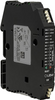
Using AI-PMUL & A1-P1A LEM Universal Rogowski Coil integrators
, by Daniel Rehe, 2 min reading time
, by Daniel Rehe, 2 min reading time
Here we show how to setup LEM Rogowski Coil integrators AI-PMUL & A1-P1A


Power Supply Note: Please note we recommend HDR-15-24 (15 Watt) for up to 4 pcs of AI-PMUL, however for AI-P1A we reccomend HDR-30-24 (30 Watt) for up to 3 pcs of AI-P1A integrators and MDR-40-24 (40 Watt) for up to 4 pcs of AI-P1A Integrators.
Once powered up and wired correctly to the power supply and meter as shown below, power up the 24V power supply.

In order to change the selection LED, short press the select button which will cycle through the Green LED (primary current ratio), Top Red LED (output type), and Bottom red LED (Sensitivity)
Once it is red and at the top right side, then press and hold EDIT button until Red led flashes, then tap edit to change the selection. leave for 5 seconds to lock in the setting. to get back to green led you need to press select two more times. You can skip the lower Red LED selection for sensitivity but note it does need to be set to 22.5mV/kA which is the default.
The green LED as you know will set the primary ratio in the same way...I.e. hold edit button until the green led flashes then short press edit.
Power up the kwh meter after connections have been checked.
Note for ratio setting in KWh meter. Each meter is different. For example Eastron SDM630MCT-MV if you have 1000/0.333V ratio then CT2 is locked to 0.333V, and CT1 is set at the actual primary ratio. However for 1A/5Amp models such as SDM630MCT-MODBUS-CL1-V2, CT2 is configurable to 1 Amp or 5Amp and CT1 will be the ratio (CT rate) which will be the primary setting(CT1/CT Rate) divided by the secondary setting (CT2). For the case of 1000/1 Amp CT rat/CT1 will be set to 1000.
For further support please contact Fastron Electronics Sales Team


